Blog
October 21, 2026
·6 min readiPhone AR Not Opening? Separate the Product Viewer from the Quick Look Handoff

Otuokon Nsikak

If a product rotates correctly on your website but does not open in iPhone AR, test the AR handoff separately. A working browser view proves that one rendering route works. It does not prove that the page launches a supported Apple Quick Look asset, that the delivered file matches the selected product, or that the shopper can return to the purchase.
For ecommerce and digital product leads, this distinction matters when approving a catalogue launch. A desktop demonstration can look complete while the mobile buyer reaches a download, an incorrect finish or no useful next step. Ask the implementer to locate the failed transition before commissioning another model or replacing the viewer.
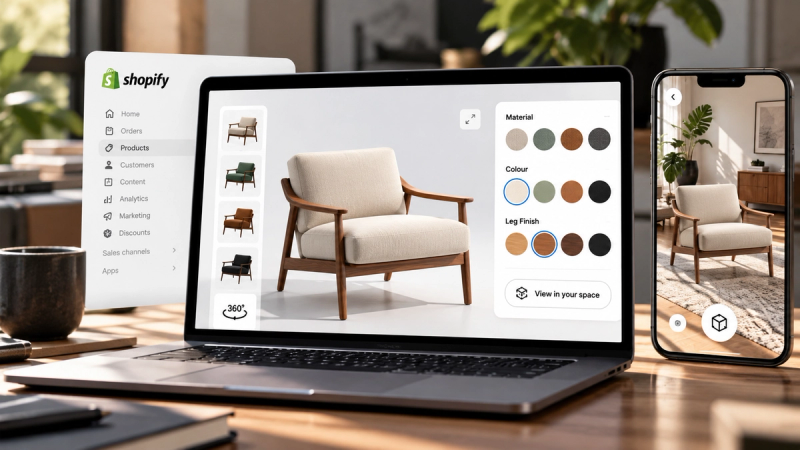
SwiftXR's 3D model viewer offers browser product inspection and an AR route. Our recommendation is to approve those as separate buyer tasks using the exact published experience. A successful upload or visible AR control is useful evidence, but neither is the acceptance result.
Know which experience is failing
First distinguish three observations: the product appears in the page, the AR destination opens, and the product can be inspected in its intended surroundings. Keep the result of each observation separate. Saying that the model works hides the point at which the buyer gets stuck.
Apple's Quick Look gallery describes USDZ objects displayed through built-in applications including Safari. Its developer documentation describes supplying USDZ or Reality content and linking a supported file from a web page. Do not assume that the asset used by the browser viewer is itself the Apple handoff asset.
Record the failing product URL, selected option, device, operating system, browser and exact action. Reproduce the problem from the destination page, rather than from a saved screenshot or a supplier's separate demonstration. That gives the web team a concrete incident and the catalogue team a way to confirm the correction.
Find the delivered asset before changing the model
Ask the implementation owner how the page obtains the Apple asset. Does it link to a prepared file, or does the chosen viewer generate one? Keep the source model, browser delivery and AR delivery associated with the same product revision. The answer determines which team can investigate the problem.
For example, the current model-viewer documentation distinguishes a supplied ios-src USDZ from generation when Quick Look is enabled without that separate source. It also notes limits to generated output, including animation support. This is an example of why delivery behaviour must be checked in the chosen implementation, not a statement that SwiftXR exposes those attributes or uses the same conversion process.
If the Apple delivery is a prepared file, ask for its exact deployed URL and revision. If it is generated, record the source and the settings that produced it. A second export made after the incident is a new test candidate. It does not establish what the shopper originally received.
Use the separate GLB versus glTF handoff guide for browser package governance. Here the decision is narrower: identify the Apple delivery path before assigning a fix to the asset supplier or website team.
Check the launch link and the response
For a custom direct Quick Look link, Apple's WebKit guidance documents an anchor with rel="ar", a single image or picture child, and the USDZ content type model/vnd.usdz+zip. Have the developer inspect the deployed link and server response against the applicable documentation. Changing the filename alone does not establish that the response contains the expected asset.
Use that guidance to investigate a direct-link implementation. For a managed viewer, ask its owner to verify the supported route instead of inserting a second, competing AR control into the page. Keep the incident focused on one buyer action and one accountable delivery path.
The useful evidence is specific: which control was tapped, which asset was requested, what response arrived and what the device displayed. Avoid declaring an operating-system defect from one failed product link. Equally, avoid rebuilding the model until the delivered file and launch route have been checked.
Confirm the product after AR opens
Opening Quick Look resolves only the launch question. The catalogue owner still needs to confirm that the object represents the intended sellable product. Compare visible parts, finish, orientation and dimensions with the approved product record. Keep measured specifications available outside AR.
Consider a fictional watering-can range with two finishes. If the page shows the ivory option but AR opens the lavender option, a successful launch is still a failed product journey. Record the selected option and the object actually displayed, then investigate where the mapping changed. This example describes an acceptance task, not a SwiftXR customer result or an automatic variant-sync capability.
Test the buyer's actual inspection question. Can they understand the product's form and placement, and are any important qualifications still available? A convincing room view is not proof of fit, material accuracy or installation suitability. Use approved dimensions, photography and technical information for those decisions.
Preserve the return to the product page
The buyer needs a useful route when AR is unavailable and after leaving it. Retain the ordinary product view, images, specifications and purchase or enquiry step. Do not make the AR action the only way to understand the item.
Check the destination on a representative physical iPhone and Safari version for your audience. A desktop viewport resized to phone width cannot establish that the device handoff works. If customers arrive through another browser or an embedded browser, include that entry route in the agreed test scope rather than extending the Safari result to every context.
After closing the AR view, confirm the product and selected option on the page. If the journey loses context, record that separately from the file-opening issue. The correction may belong to page state or navigation, even when the AR asset is accurate.
Close the incident with evidence, not a new screenshot
Keep a short acceptance record that identifies the product revision, destination URL, Apple delivery source, device and browser, launch result, product match and return result. Attach the actual observation and the owner of any remaining failure. Keep still-image inspection available while an unresolved route is being investigated.
For a SwiftXR pilot, bring one approved model and the affected page to a demo. Ask the team to demonstrate the supported browser and AR paths for the same product. The decision to expand the catalogue should follow that evidence, rather than the presence of an AR button.
This guide separates incident diagnosis from platform selection. If the wider decision is whether to distribute through a website or an application, use the WebAR versus app-based AR guide. A successful iPhone handoff answers a specific implementation question; it does not establish compatibility with every device or guarantee a commercial outcome.