Blog
November 2, 2026
·4 min readHow to Add a 3D Product Configurator to WooCommerce

Otuokon Nsikak
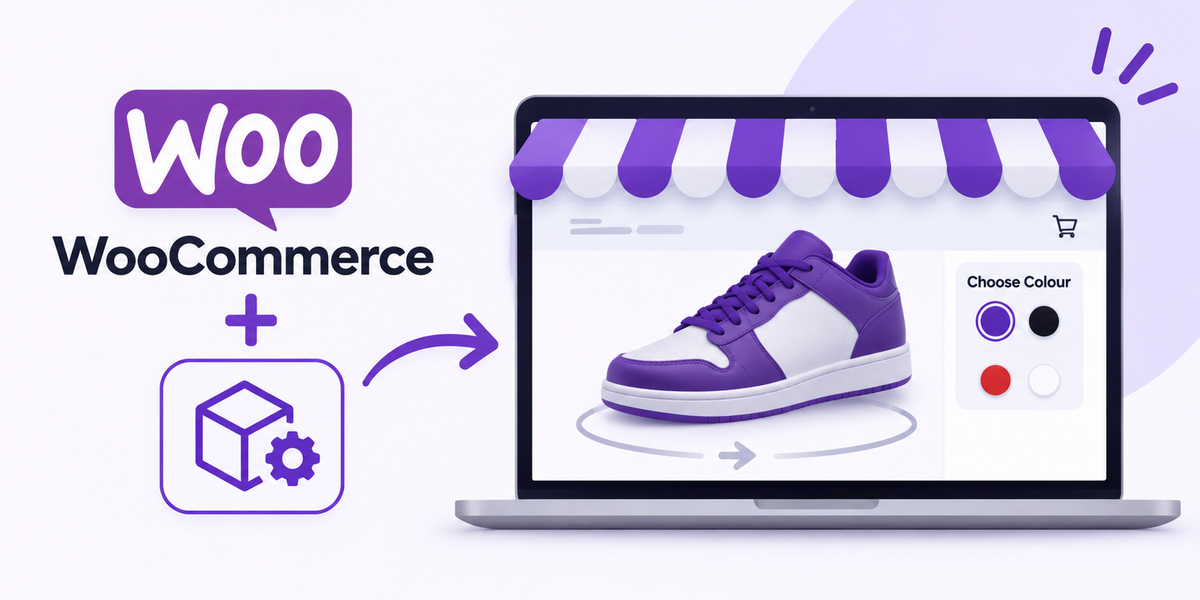
Most WooCommerce stores still show product options as a list of colours or materials next to a flat photo. The shopper picks one and hopes the image matches. That gap creates hesitation, especially when the product has real visual differences.
A 3D product configurator closes that gap. Shoppers can see the change happen on the product itself before they add it to the cart.
You do not need to rebuild your WooCommerce store to add one.
What a 3D product configurator does on WooCommerce
WooCommerce already handles variants, pricing, and inventory. A 3D configurator does not replace that system. It makes the visual choice clearer.
When a shopper selects a fabric, finish, or colour, the 3D view updates to match. They can rotate the product, check details, and understand what they are choosing. The rest of the product page stays the same: price, description, add to cart, and checkout.
This works best for products where appearance matters: furniture, lighting, homeware, fashion accessories, and configurable equipment.
What you need before you start
- A WooCommerce store
- One product with clear visual options (colours, materials, or finishes)
- A 3D model of the product (GLB works well)
- A SwiftXR account
You do not need a developer for the basic setup. You also do not need separate models for every colour if the configurator can switch materials on the same model.
How to add it with SwiftXR
1. Create the configurator in SwiftXR
Open SwiftXR and create a new project. Upload your product model. Set up the options shoppers should control (fabric, finish, colour). Map each option to the correct visual change. Adjust lighting and the starting camera angle so the product looks clear on first load.
2. Publish the experience
Once the configurator is ready, publish it. You will get a shareable link and an embed option.
3. Connect it to WooCommerce
Install the SwiftXR WooCommerce plugin from your WordPress dashboard. Link the published SwiftXR project to the product. Place the experience on the product page using the block, shortcode, or the plugin’s mapping. The configurator appears next to your existing product information.
4. Test the full path
Open the product page on mobile and desktop. Change options and confirm the 3D view updates. Check that the add to cart still works and that the selected option is recorded correctly in the order. Test AR on a real phone if you enabled it.
Most teams complete the first product in under a day once the model is ready.
What to watch for
The visual change must match what WooCommerce sells. If a shopper selects “oak finish” in the configurator, the order should reflect that choice. Keep essential product details (price, dimensions, care instructions) on the page outside the 3D experience so they remain accessible.
Start with one product where shoppers currently hesitate. Measure whether people use the configurator and whether those sessions convert better. Expand only after you see the difference.
Where SwiftXR fits
SwiftXR lets you build and publish the configurator without coding. The same experience can run on WooCommerce, Shopify, Wix, or a custom site. Updates happen in SwiftXR and appear on the product page without a new deployment.
You can also start from a product photo and convert it to a 3D model inside SwiftXR if you do not already have one.
For a closer look at the difference between a simple 3D viewer and a configurator, see 3D Product Viewer vs Configurator.
Frequently asked questions
Can I add a 3D product configurator to WooCommerce without a developer?
Yes. With SwiftXR, you build the experience in the browser and connect it to your product page through the WooCommerce plugin or embed.
Does the configurator replace WooCommerce variants?
No. WooCommerce still manages pricing, inventory, and the order. The configurator shows shoppers what each option looks like.
What if I only have product photos?
You can convert a clear product photo into a 3D model in SwiftXR, then configure materials and finishes from there.
Will this work on mobile?
Yes. The experience runs in the browser. Shoppers can rotate the product and, if enabled, open AR from their phone.
You already have the product and the options. SwiftXR is the step that lets shoppers see those options clearly on the page.
Start free with SwiftXR
No credit card. No developer. Live on your WooCommerce product page in minutes.