Blog
November 4, 2026
·7 min readHow to Create a QR Code That Opens an AR Experience Without an App

Otuokon Nsikak
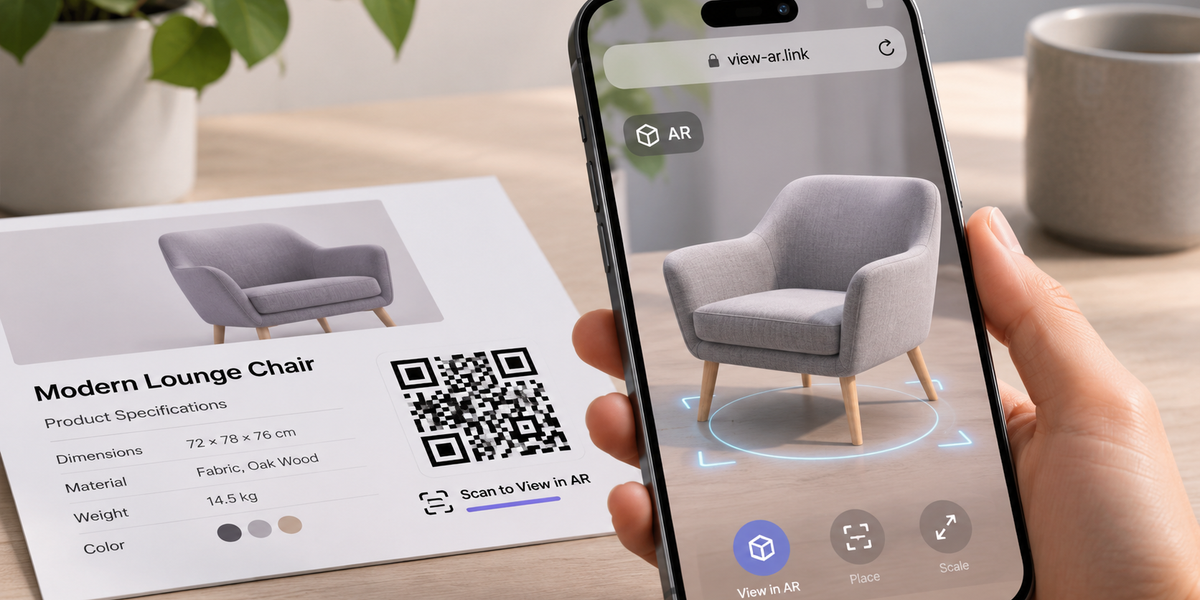
A customer scans a QR code on your product packaging, and a 3D version of the product opens on their phone. They can rotate it, inspect the details, or see how it looks in their surroundings.
No app to download. No account to create.
That's what a QR code linked to augmented reality (AR) can do.
But getting someone to scan is only half the job. The experience needs to open properly, work on their device, and give them somewhere useful to go next.
Here's how to create one using SwiftXR.
How does a QR code open an AR experience?
A QR code doesn't create augmented reality. It contains a link that takes someone to an online experience.
When they scan the code, their phone opens the link. On a compatible device, they can launch AR through the browser or the phone's built-in AR viewer.
This approach is commonly called WebAR.
For example, a furniture retailer could place a QR code beside a sofa in its catalogue. Customers scan it, open an interactive 3D model, and use AR to see how the sofa might look in their living room.
The benefit is simple: customers can explore a product without installing a separate branded app.
How to create an AR QR code with SwiftXR
SwiftXR provides no-code tools for creating and publishing interactive 3D and AR experiences.
You can build an experience, publish it online, and share it through a QR code without developing a mobile application.
Step 1: Decide what customers should see
Start with the problem you're trying to solve.
Do customers need to understand a product's size? Inspect details that photographs don't show? See how something looks in their space?
A furniture brand might use AR placement to help shoppers judge scale. An electronics manufacturer could use interactive 3D to show a product's ports and features.
Choose one clear goal. Not every product needs a complicated AR experience.
Step 2: Prepare your 3D model
You'll need a suitable 3D model of the product.
You can use an existing model, work with a 3D designer, or explore SwiftXR's AI-assisted creation tools.
Check that the model accurately represents the product's dimensions, proportions, and appearance.
This is especially important for AR placement. A sofa that looks smaller in AR than it is in real life could mislead a customer making a purchasing decision.
Keep the model optimised so it loads reasonably quickly on mobile devices.
Step 3: Build and preview the experience
Once your model is ready, open the SwiftXR Hub and create a new project.
Follow these steps in the editor:
Add the AR component. Open the Components panel, select 3D, and drag the Augmented Reality component onto the canvas.
Upload your model. Use the Properties panel to upload a model or select an available asset.
Adjust the model. Configure its scale, positioning, and appearance. Make sure the dimensions match the real product.
Add hotspots if needed. Use labels to highlight useful product features or specifications.
Preview the experience. Check the model and its interactions, then test AR on a compatible smartphone.
Keep the experience focused. Customers should understand how to explore the product without needing a tutorial.
Step 4: Publish and generate your QR code
When you're happy with the experience, publish your SwiftXR project.
SwiftXR supports sharing published experiences through direct links, website embeds, and QR codes.
Use the QR-code publishing option to create a code that links to your experience.
Before printing, scan it with a real phone. Confirm that the link opens correctly, the model loads, and the AR feature works on supported devices.
If the code will appear on packaging or printed catalogues, test the final printed version as well.
Step 5: Give people a reason to scan
A QR code without an explanation doesn't tell customers what they'll get.
Add a short instruction that explains the benefit.
For furniture: "Scan to see this sofa in your room."
For electronics: "Scan to explore the product in 3D."
For exhibitions: "Scan to view the product in AR."
Make sure the promise matches what actually opens.
Will an AR QR code work on iPhone and Android?
Most modern smartphones can scan QR codes, but that doesn't mean every phone supports the same AR features.
On compatible iPhones, AR experiences may open through Apple's AR Quick Look, which commonly uses USDZ assets.
On compatible Android phones, Google's Scene Viewer can display 3D models and support AR placement on devices with the required services.
Desktop visitors can usually explore a browser-based 3D model, even though they won't get the same handheld camera-based AR experience.
The safest approach is to test on real iPhone and Android devices before publishing.
Also consider how customers open the link. Some in-app browsers, including those used by social media and messaging apps, may restrict certain AR features.
What if the AR experience doesn't open?
A customer shouldn't reach a dead end just because their phone doesn't support AR.
Here are the most common problems and what to do about them.
Camera permission denied: Some AR experiences need camera access to show digital objects in the real environment. Explain why permission is needed. If the customer declines, offer a regular 3D view instead.
Unsupported device: Let customers rotate the product in 3D or view normal product photographs with dimensions and specifications.
Restricted browser: If the AR experience doesn't launch inside another app, suggest opening the link in Safari or Chrome.
Slow connection: Use optimised 3D models and avoid unnecessary assets that increase loading times.
A simple fallback message works well:
"AR isn't available on this device. You can still explore the product in 3D."
The goal is to help customers understand the product, whether or not their device supports AR.
Static vs dynamic QR codes: what should you use?
This matters when you're printing QR codes on product packaging, brochures, or event materials.
A static QR code contains a fixed destination URL. If that URL changes, the printed code still points to the original address.
A dynamic QR code uses a redirect link that can be updated later without changing the printed code.
For long-term packaging, a dynamic QR code or a stable published URL can make updates easier.
SwiftXR allows published projects to be updated, but confirm that your QR-code destination remains unchanged after editing or republishing.
Before printing, keep the code high-contrast, leave clear space around it, and test it at its intended size and scanning distance.
Is QR code AR worth using for your business?
Not every QR code needs AR.
If customers only need a price list, contact details, or a product manual, a normal webpage may be enough.
AR becomes more useful when people need to understand a product visually, particularly its size, design, or appearance in a real environment.
A furniture retailer might use it to help customers judge placement. A manufacturer could let buyers inspect equipment that isn't physically available at a trade show.
Start with one product and test the experience before expanding.
Frequently asked questions
Can a QR code open AR without downloading an app?
Yes. A QR code can link to a browser-delivered AR experience that works on supported devices without requiring customers to install a dedicated branded app.
Do I need coding skills to create an AR QR code?
No. SwiftXR provides no-code tools for creating and publishing AR experiences. You'll still need suitable 3D content and should test the result on real phones.
Can I create an AR QR code for free?
Generating an ordinary QR code can be free. Building and hosting the AR experience may involve costs. SwiftXR currently advertises a five-day trial and paid subscription plans.
Can I update the AR experience after printing the code?
Yes, provided the printed code points to a stable or redirectable URL. Confirm that the destination remains valid when your SwiftXR project is updated.
Start with one scan
A useful QR code AR experience doesn't need to be complicated. It needs to open reliably, show something worth exploring, and make the next step easy.
Start with one product. Build the experience, generate your QR code, and test it on real phones.
With SwiftXR, you can create and publish interactive 3D and AR experiences without building a separate customer app.
Get started with SwiftXR and create your first scannable AR experience.