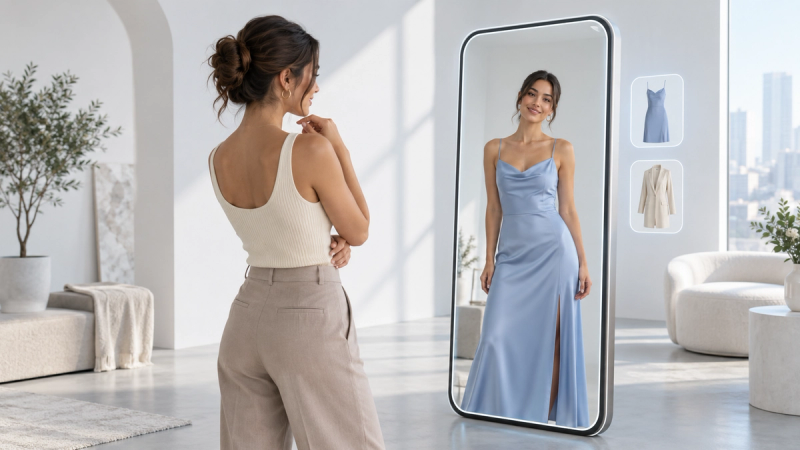
September 17, 2026
·6 min readVirtual Try-On for Shopify

Otuokon Nsikak
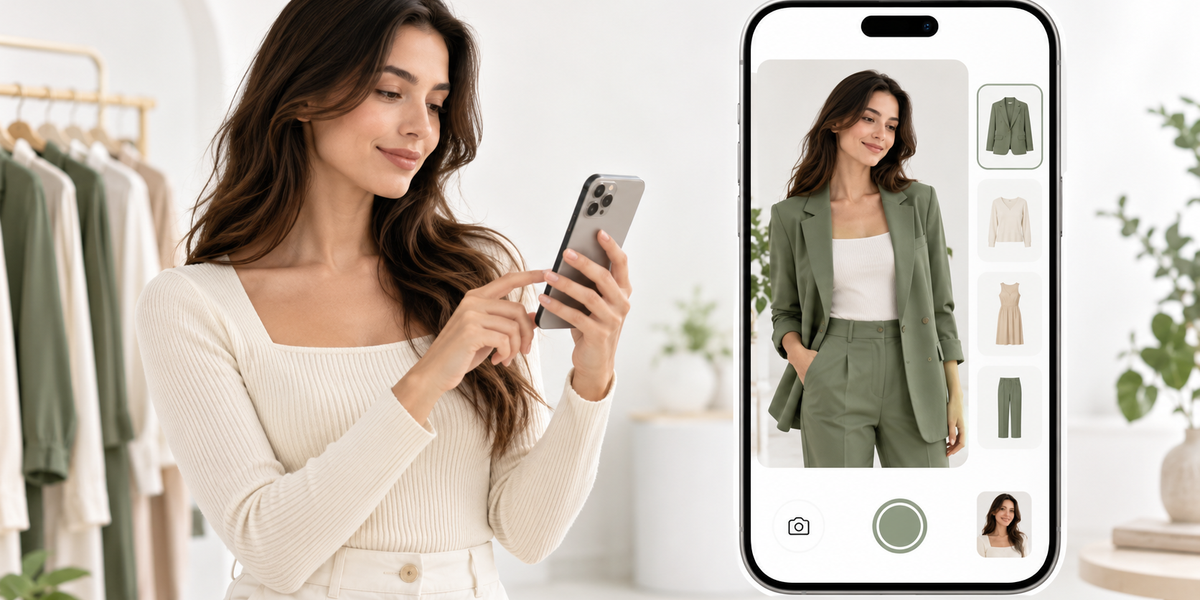
A Shopify product page can do almost everything except the one thing a fitting room does by default.
It can show photos, videos, reviews, size charts, and related products. It still cannot fully answer the question that stops a lot of wearable purchases:
How will this look on me?
That gap is why virtual try-on matters on Shopify. Not as a campaign gimmick. As a product-page tool that helps shoppers decide before they hit add to cart.
Why Shopify stores need virtual try-on
Shopify makes it easy to sell online. It does not automatically solve confidence problems on wearable and appearance-led products.
For categories like apparel, footwear, headwear, accessories, eyewear, and jewellery, shoppers often hesitate because they cannot test the product against themselves. The result is familiar:
- Longer decision time
- Abandoned product pages
- Higher return risk when the item arrives and feels different from the photos
Virtual try-on closes part of that gap by letting shoppers see the product on themselves from the same page where they buy.
What virtual try-on on Shopify should look like
The best setup is simple for the shopper and manageable for the merchant.
A strong Shopify try-on flow usually means:
- The shopper is already on the product page
- They upload or capture a photo, or use a supported camera-based flow
- They see the product on themselves quickly
- They can continue to cart without leaving the store
- No app download is required
If try-on forces people off-site, into an app, or through a clunky extra login, most will not bother.
What SwiftXR adds to Shopify
SwiftXR is built for immersive ecommerce experiences, including virtual try-on that can run on Shopify product pages.
With SwiftXR, Shopify merchants can offer:
- AI Photo Try-On for fashion, footwear, apparel, and other wearables
- Browser-based experiences with no customer app install
- Product-page delivery through supported Shopify workflows
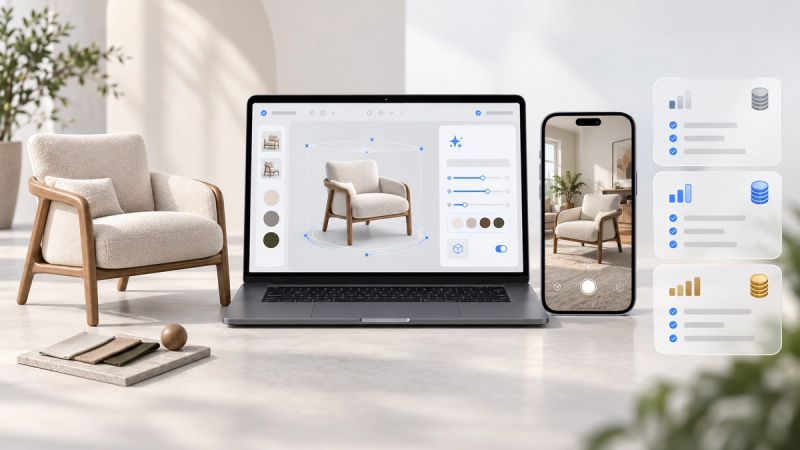
- A wider toolkit in the same platform, including 3D product viewing and AR, when the product needs more than try-on alone
That matters because many Shopify brands do not have only one confidence problem. A shopper may want to see a product on themselves and still need clearer detail, finish, or variant context before buying.
How to add virtual try-on to a Shopify store
1. Start with the right products
Do not enable try-on on the entire catalogue on day one.
Start with products where appearance on the body drives hesitation or returns:
- Dresses, tops, outerwear
- Shoes and sneakers
- Hats and headwear
- Bags and accessories worn against the body
- Other items where “on me” matters more than “in a studio shot”
A small pilot teaches you more than a full-catalogue launch.
2. Connect SwiftXR to your Shopify store
Use the supported Shopify setup path to connect your store and enable try-on on selected products.
The goal is operational simplicity. Your team should be able to turn try-on on for a product without opening a development project every time.
3. Enable try-on on pilot SKUs
Choose a tight set of products. Confirm that each product has the assets and settings needed for a clean result.
Then test the shopper path on mobile:
- Open the product page
- Launch try-on
- Complete the photo or camera step
- Review the result
- Continue toward add to cart
If that path feels slow or confusing on a phone, fix it before expanding.
4. Keep the rest of the product page intact
Virtual try-on should support the buying decision, not replace the page.
Keep:
- Clear photos
- Price and variant selectors
- Size guidance where relevant
- Reviews and product details
- A visible route to cart
Try-on works best as part of the page, not as a separate experience that breaks the flow.
5. Measure what matters
Views alone are not enough.
Watch for:
- How many shoppers open try-on
- Whether they complete the result
- Whether try-on users continue to cart more often
- Whether return reasons related to appearance start to change over time
Use those signals to decide which products deserve try-on next.
Why app-free try-on matters on Shopify
Shopify traffic is heavily mobile. Mobile shoppers abandon friction quickly.
An app-free, browser-based try-on flow protects the session. The shopper stays in the product page environment, gets the confidence they need, and can buy without installing anything.
For most Shopify stores, that is the practical standard.
Who this is for
Virtual try-on on Shopify is especially useful if you:
- Sell fashion, footwear, or wearable accessories
- See hesitation around fit, style, or appearance
- Want a no-code path rather than a custom build
- Need something your ecommerce team can maintain
- Care about mobile completion, not just desktop demos
It is less useful if your products are not appearance-led, or if the main buyer doubt is purely technical and unrelated to how something looks on a person.
A simple rollout plan
Week 1
Pick 5 to 10 pilot products. Enable try-on. Test on iOS and Android.
Week 2
Review completion and feedback. Fix anything that slows the flow.
Week 3
Expand to the next product set in the same category.
Week 4
Compare engagement and conversion signals against non-try-on products in the same category.
Keep the scope controlled. Shopify stores get better results from a stable pilot than from turning on everything at once.
Virtual try-on belongs on the product page
Shopify already gives you the storefront. Virtual try-on gives shoppers a better way to judge wearable products before they buy.
The winning setup is not the most complicated one. It is the one that is:
- Easy to launch
- Easy to use on mobile
- Free of app installs
- Connected to the products you actually sell
- Maintainable by your team after week one
SwiftXR brings that to Shopify with AI Photo Try-On and a broader immersive commerce workflow around it.
Add virtual try-on to your Shopify store →
Frequently Asked Questions
Can I add virtual try-on to Shopify without a developer?
Yes. SwiftXR is built for no-code setup and product-page publishing, so ecommerce teams can enable try-on without a custom development cycle.
Does the shopper need to download an app?
No. SwiftXR try-on is designed to run in the browser on a phone or desktop.
Which Shopify products benefit most?
Products where appearance on the body affects confidence: apparel, footwear, headwear, and many accessories.
Will try-on replace my product photos?
No. Keep your photos and page content. Try-on adds a personal preview layer that static media cannot provide on its own.
Should I enable try-on on every product immediately?
No. Start with a pilot set, measure the flow, then expand to products where the feature clearly helps the buying decision.