
Blog
October 5, 2026
·6 min read3D Product Hotspots: What to Label and What to Leave on the Page

Otuokon Nsikak
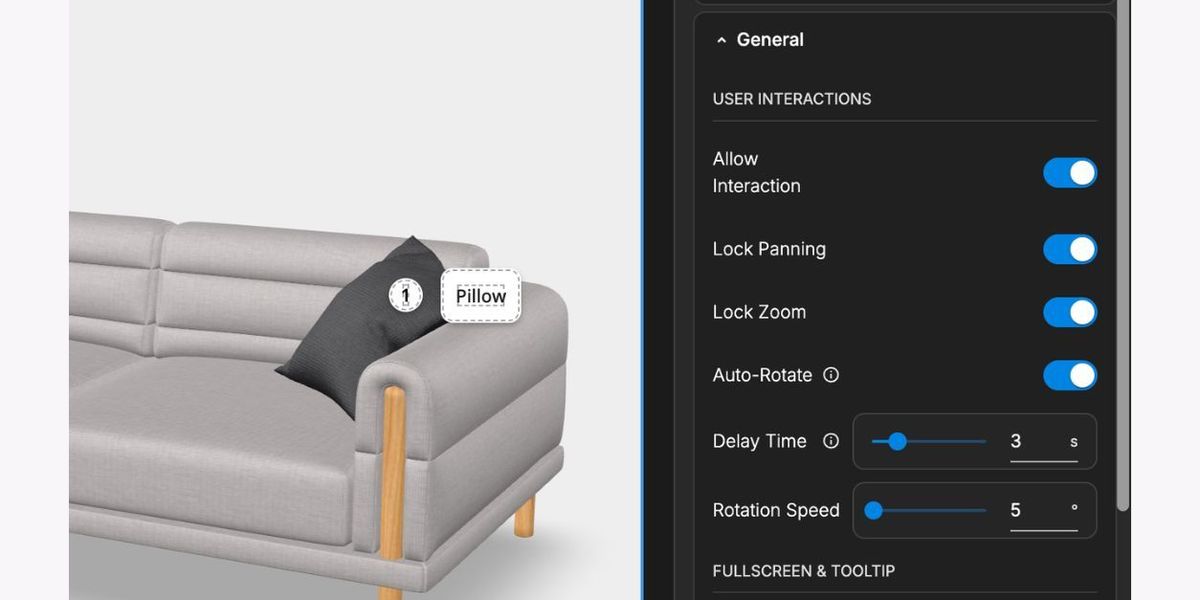
A 3D product hotspot is an interactive label attached to a detail in a product model. Use it to explain something the buyer can inspect at that location, such as a connector, closure, or adjustable component. Keep essential specifications, compatibility, prices, and purchase information in ordinary product-page content as well.
For ecommerce and product marketing teams, the hard decision is editorial: which details deserve attention, and which labels merely repeat the specification sheet? A model covered in pins can leave buyers with more work. A sparse model can leave an important detail unexplained. Start with the question a buyer asks while looking at the product, then choose the annotation that answers it.
SwiftXR supports labels, text, media, and links on parts of a 3D model, as described on its features page. Our recommendation is to treat each hotspot as a small piece of maintained product copy. The model supplies visual context; an approved source supplies the factual answer. Adding a pin does not verify the statement beside it.
Choose a detail the model can actually show
Imagine a fictional task lamp sold to workplace procurement teams. Its buyer may need to see where the cable enters, how the base is shaped, or which visible joint adjusts. These are useful candidates because the label can direct attention to an identifiable part. Electrical ratings, warranty terms, and mounting compatibility still need authoritative specifications.
Ask whether opening the hotspot changes the buyer's understanding. A label reading “Base” may add little. “Cable entry at rear of base” can help someone locate a detail that is hard to see in the opening view, provided the approved model shows that entry accurately. If the geometry omits the connector, the label cannot repair the visual evidence.
Choose between these treatments:
- A location label names a visible part that a buyer needs to find.
- A short explanation connects that part to a supported use or operation.
- A link takes the buyer to maintained detail that is too long or changeable for the annotation.
- Ordinary page copy carries information that remains essential even when the viewer is closed.
This is a copy-selection method, not a claim that every product needs hotspots. If rotation and a clear photograph already answer the question, another label may be unnecessary.
Write one answer per hotspot
Give the label a specific name, then answer one question in a short passage. Avoid placing a whole sales pitch inside the annotation. A buyer looking at a component should not have to separate its description from unrelated benefits.
For the fictional lamp, an approved annotation could say: “Rear cable entry. The power cable exits through the back of the base. Check the product specification for cable length and electrical requirements.” This illustrates the writing pattern; it is not a SwiftXR customer product or a verified lamp specification.
That pattern has three parts: identify the visible detail, state the supported fact, and give the next source when qualification matters. Words such as ergonomic, durable, sustainable, and compatible require evidence. A close-up view alone does not establish them.
Prepare the copy before building the interaction. Record the product identifier, model revision, hotspot location, wording, evidence source, destination link, and copy owner. Review the image and the statement together. If the annotation describes a different SKU or an earlier revision, hold that annotation until the product team resolves it.
Keep critical facts available outside the viewer
Hotspots should supplement a product page that already makes sense. A buyer may skip the viewer, use a device that cannot load it, or prefer to read specifications directly. Put the facts needed for a purchase or enquiry in maintained page content, with descriptive headings and a clear next action.
For example, a visual pin can point to a mounting bracket. The supported surface types, included hardware, and installation qualifications should remain available in the specification or installation guidance. A buyer should not need to discover a hidden pin to learn a constraint that changes suitability.
Link the annotation to the right product or document revision. Do not send every pin to a generic homepage. If the destination changes frequently, assign an owner to check both the annotation and the destination. This keeps the explanation connected to the evidence without pretending the 3D experience owns price, stock, or compatibility data.
Test placement and copy together
Inspect every hotspot from the opening view, side, back, and relevant close-up. Check whether it still points to the intended feature as the model rotates. Test overlapping markers, text panels that cover the product, and labels that disappear before a buyer can use them. There is no universal correct number of pins; judge them against the actual task and viewport.
The official model-viewer annotation examples show why placement and visibility require deliberate handling: hotspots can have model-space positions and surface normals, and visibility can change with viewpoint. These examples explain a technical pattern. They do not establish that SwiftXR uses the same implementation or supports every demonstrated behaviour.
In a SwiftXR pilot, start with an approved model and its supported hotspot controls. Check the published experience on phone and desktop. Ask a colleague who did not write the labels to find the target detail and explain it in their own words. Record confusion about location, wording, or the next source separately so the team fixes the right problem.
Test keyboard and touch access, readable text, dismissal, and the route back to the product. Use the existing 3D viewer accessibility guide for the broader page test. Do not label the experience accessible solely because the hotspot contains text.
Decide whether the annotation earns its place
A useful pilot asks whether the buyer found the relevant detail, understood the explanation, and could continue to the next source or action. An opened hotspot is evidence of an interaction. It is not proof of understanding, qualified demand, conversion, or fewer returns.
Keep a label only when it answers a real question and can be maintained. If several pins repeat one paragraph, consider moving that paragraph onto the page. If a detail needs a sequence or a specialist demonstration, choose the format that can explain it accurately instead of forcing the whole explanation into a tooltip.
SwiftXR's 3D model viewer offers a browser-based route for presenting and embedding an approved model. For a practical hotspot pilot, bring one model, the questions buyers ask about it, and the specifications that support your answers to a SwiftXR demo. Evaluate the explanation and the product-page handoff together.
Sources and scope
SwiftXR capability statements were checked against its current features and model viewer documentation page. Technical annotation context comes from the official model-viewer examples. The lamp and its sample copy are fictional. This guide recommends an editorial review method and reports no customer result, vendor ranking, or performance guarantee.