Blog
November 18, 2026
·4 min read3D Product Visualisation Software: A Buyer Guide for Ecommerce Teams

Otuokon Nsikak

Shortlist ecommerce 3D product visualisation software by running a product update on a staging page. Give each route the same approved model and the same buyer question, then ask the person who owns the catalogue to publish a revised version. The right tool answers the buyer's question and makes it clear which version is live and who can change it.
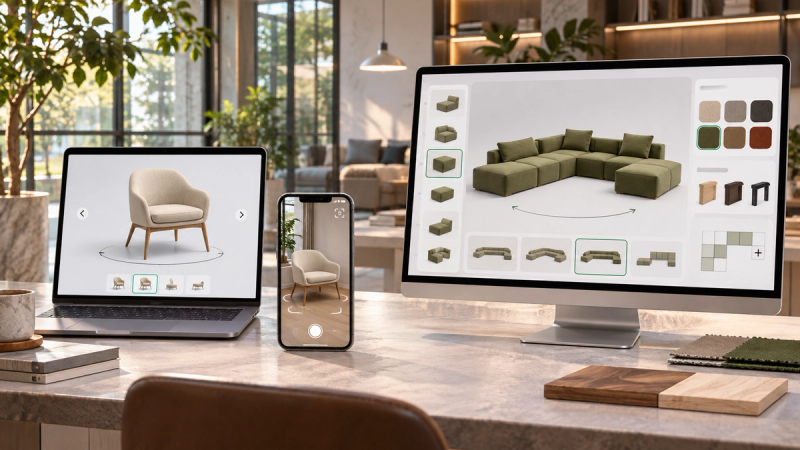
A good first render tells you little about that second publish. A team might still have to update several galleries, find an editor with the right permissions or check which version a sales link opens. SwiftXR fits a team bringing approved models to web and sales pages: its 3D Viewer supports camera controls and labels, and projects can be published as a link or embedded.
Start with the job the view has to do
Choose a product whose front photo leaves a real question unanswered. For a desk fan, it might be where the control sits or what the rear grille looks like. Give each option the same geometry, product photos and buyer task. Compare where the viewer appears, what you need to author and who can revise it. The examples below are based on current official documentation, without speed tests or a universal ranking.
- Shopify product media fits a store that needs a 3D model in its existing product gallery. Shopify documents 3D product media, but the theme has to support it. Use the product template for the test and record which person can replace the file in Shopify admin.
- Vectary fits a team that needs to build or import models for design review and then share an interactive prototype. Vectary documents browser collaboration and embeds. If the model is already approved, test whether the design workspace would replace an existing step or add a second place to maintain the asset.
- SwiftXR fits a team that needs to present an approved model as a guided product view for the store and share a browser link with sales. Its editor can set camera framing and attach labels. Treat the viewer as presentation; verify how your own page handles SKU selection, specifications and checkout.
Watch the buyer use the product page
Try each route on the actual product template or a private copy, using a phone as well as a desktop. Ask someone who did not build the demo to find the same feature in each view. Check whether they can still read the product details and select the correct SKU when they close or skip the viewer. Keep key facts and photos in the product page; they should still be available when the model cannot load.
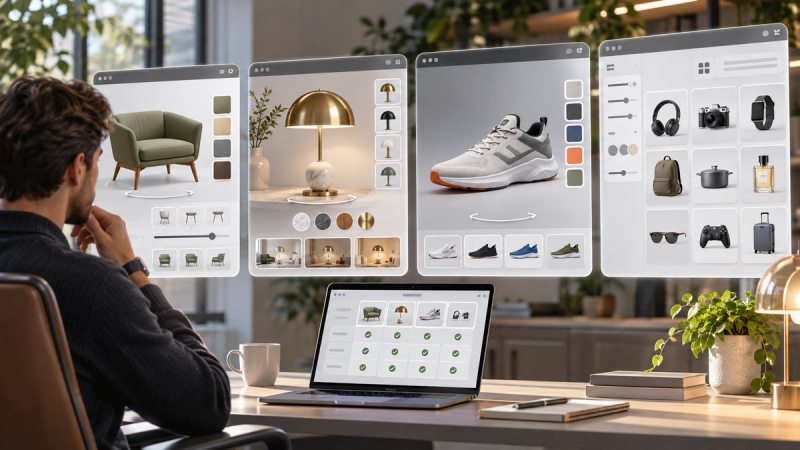
If your team needs the buyer's choices to change what can be ordered, that is a separate requirement. Use SwiftXR's product configurator overview to frame that discussion, and verify the order handoff before assuming a visual option updates a cart.
Make a real change before choosing
Give the catalogue owner an updated, approved asset, with one deliberate change such as a revised grille. Ask them to identify the version on the page, replace it, check the browser link or embed and restore the previous version if the replacement fails. Record which pages or galleries they had to touch, which permissions they needed, and what still referred to the old product.
If the same team can complete that change in its existing store workflow and the view answers the buyer's question, keep it there. If the task needs labels or a shareable experience, compare authored viewers by how cleanly the same catalogue owner can make and verify the change. If the geometry is still under review, keep approval in the design workflow until there is a model you can confidently publish.
Before committing the catalogue, pick one SKU and one buyer question. If a separate hosted experience earns its place, explore the SwiftXR 3D Model Viewer and bring that SKU to a pilot.