Blog
September 30, 2026
·5 min readShopify Native 3D Media or a SwiftXR Experience: Which Fits the Product Page?

Otuokon Nsikak

For a Shopify product page that needs a single model shoppers can rotate, start by testing Shopify's native 3D product media. Choose a SwiftXR experience when the buyer task needs a separately managed interactive scene, approved visual options, hotspots, or a viewer shared beyond one product media gallery. Neither route makes an inaccurate model accurate, and neither proves that a visual selection reaches checkout. Test the full path before rollout.
This is a practical decision for ecommerce and product teams with an approved model and a live Shopify theme. Shopify's current documentation supports 3D model media in compatible themes. SwiftXR's Shopify page describes an app block and product mapping to a published experience. The useful question is which system should own the viewer, the visual options, and the ongoing product handoff.
Start with the buyer question
If the buyer only needs to inspect a fixed product from different angles, Shopify's native product media may be sufficient. Shopify's media guide says stores can upload GLB or USDZ models and need a theme that supports 3D media. A merchant can add the model to a product's media in the admin and test the rendered theme. This keeps the initial publishing path close to familiar catalogue operations.
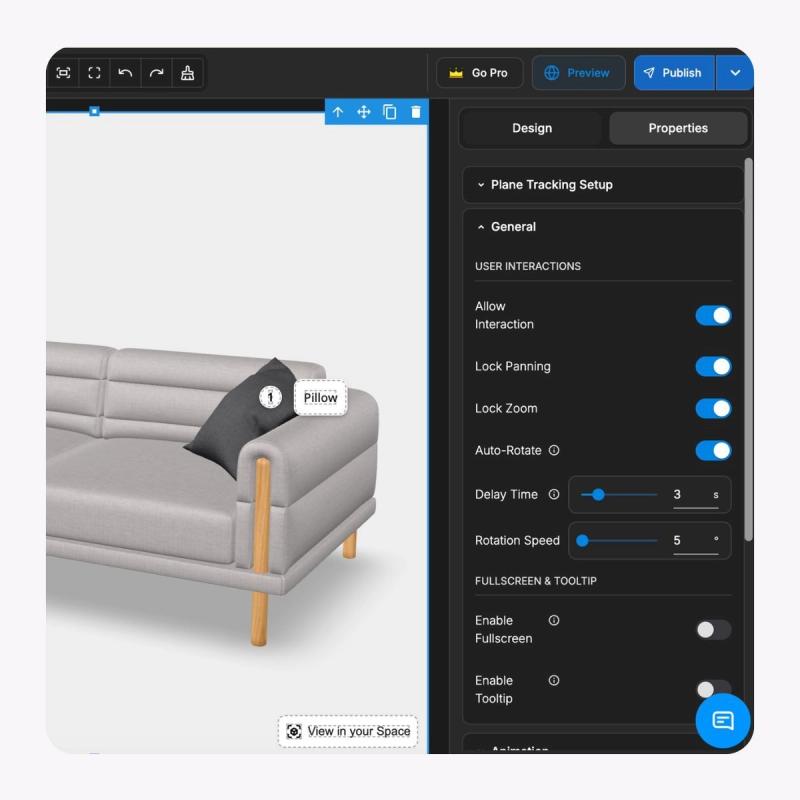
If the buyer needs a guided explanation of an approved detail, or needs to compare supported visible finishes inside one experience, SwiftXR may be a better fit. SwiftXR's 3D viewer supports camera setup and hotspots, while its Shopify integration describes an app block and a mapping from Shopify products to published SwiftXR projects. Those are product capabilities, not evidence of an automatic connection to every merchant's price or order rules.
Compare the two routes by ownership
- Model display: Shopify native media places a model in the product media gallery when the theme supports it. SwiftXR publishes an experience that can be placed on the Shopify page through its app route.
- Visual presentation: Shopify provides native model presentation controls. SwiftXR lets the team configure the opening view, lighting, and supported hotspots in its editor.
- Product options: Shopify's documentation says 3D models cannot be used as product variant media. SwiftXR describes per-variant visual experiences, but the merchant must check the chosen option against the actual variant and cart.
- Reuse: A Shopify media item is tied to catalogue administration. A SwiftXR project can also be opened as a standalone experience or embedded in another approved context.
- Evidence: Neither route should be credited with revenue or conversion improvement without a controlled measurement plan.
The comparison is about publishing and governance, not a universal winner. A native model may be the leanest choice for one fixed item. A separate SwiftXR experience can earn its place when the buyer needs more than a rotation in the gallery and the team can maintain that additional content.
Check the model before debating platforms
Build one representative product first. Confirm that the geometry, finish, proportions, and opening view match the approved physical item. Keep a versioned source file and a named owner. For Shopify's native route, verify that the file is one of the documented formats and that the live theme renders it on desktop and mobile. Shopify currently accepts GLB and USDZ product models; check the current limits and conversion rules at upload time rather than copying an old specification into a project brief.
For SwiftXR, confirm that the imported model, materials, lighting, and camera represent the same approved product. Its viewer page describes browser-based rotation and zoom, model import, and web embedding. When the model is shared in more than one location, document which SwiftXR project is canonical and who approves changes. A second publishing surface adds flexibility and a second ownership task.
Test the product and order handoff separately
On a live product page, test one fixed item and one item with a meaningful option. Check the loading state, touch interaction, fallback image, model scale, and surrounding product information on a real phone. Confirm that the selected product or variant still matches the page title, description, and checkout line item. If the experience only changes appearance, say so. Do not call it a completed configurator until the commercial option survives the store's own order flow.
Shopify's media documentation explicitly separates product 3D media from variant media. SwiftXR's Shopify page describes per-variant visual experiences. The gap between those facts is the test plan: verify mapping on the merchant's installed theme and checkout configuration. Do not infer a working order integration from a convincing preview.
Choose a pilot that can answer the decision
For a fixed product, upload one approved model to Shopify and inspect it in the actual product template. If the native experience answers the buyer question, keep the simpler route. If the team needs hotspots, controlled visual options, or reuse in sales and campaign contexts, publish one approved SwiftXR project and test its Shopify app placement. Measure the complete page and the buyer's next action against a baseline. Avoid treating a view or rotation as a sale.
The release decision should record the model version, theme version, experience owner, mobile test result, fallback behaviour, and the commercial handoff. Explore SwiftXR's Shopify route or book a demo if your team needs to review a specific product and decide which route is maintainable.