Blog
October 5, 2026
·7 min readHow to Add AR Try-On to Shopify Without Building an App

Otuokon Nsikak
If AR try-on needs a separate app, a long development cycle, or a new technical team, most Shopify stores never launch it.
That is the wrong starting point.
The useful question is simpler:
Can a shopper open the product page, try the product in AR, and continue toward the cart without leaving Shopify?
If the answer is yes, you do not need to build an app from scratch.
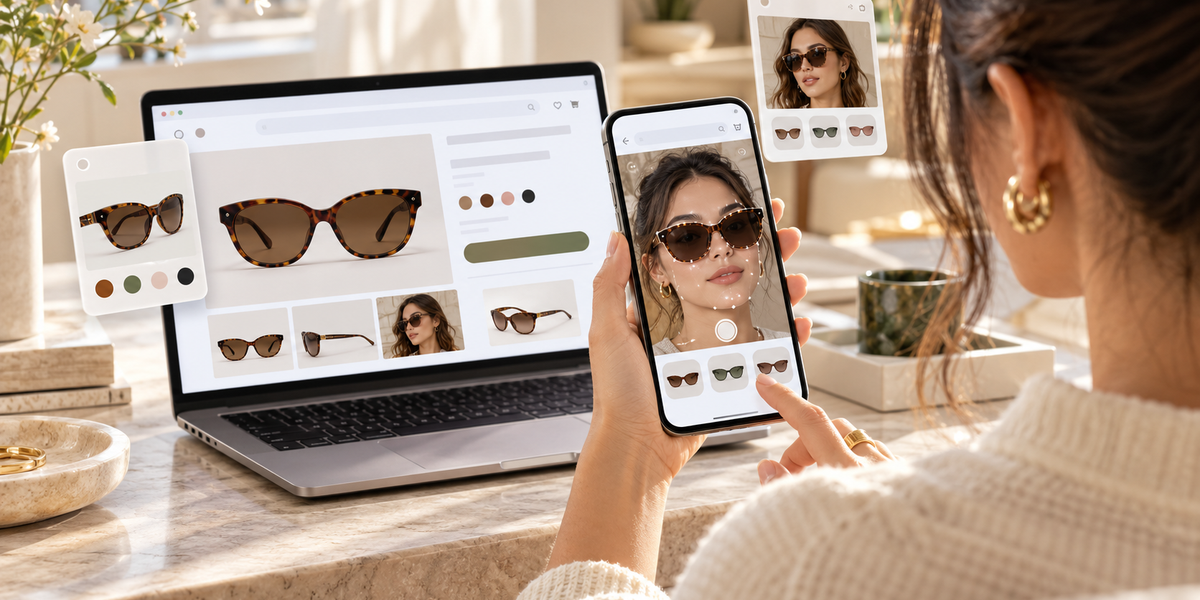
You need a browser-based experience that sits on the product page, works on a phone, and stays connected to the product the shopper is already considering.
What “AR try-on without an app” means
There are two common meanings in ecommerce:
1. Face-worn try-on
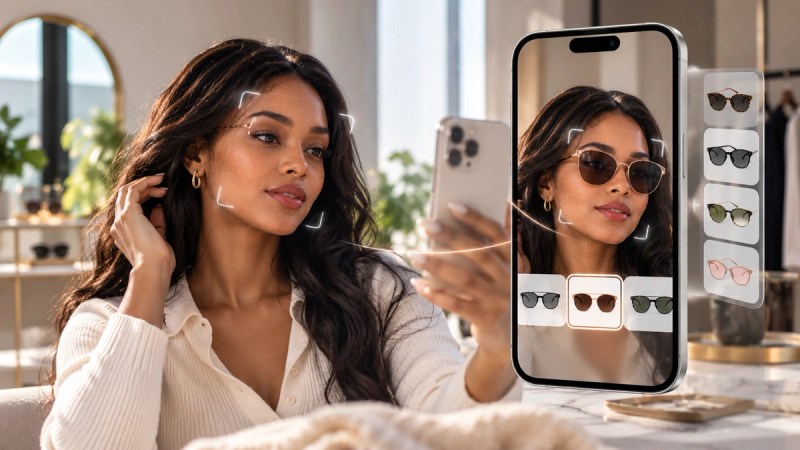
Eyewear, jewellery, beauty, headwear, and accessories. The product is previewed on the shopper’s face using face tracking or a related try-on flow.
2. Product placement in space
Furniture, home goods, larger objects. The shopper places the product in their room through the camera to understand scale and fit.
Both can run in the browser on supported devices.
Neither should force the shopper to install a separate customer app before they can decide.
That is the difference between AR as a feature and AR as friction.
Why custom app builds slow Shopify teams down
A custom AR build can look attractive on paper. In practice, it often creates delays:
- design and development cycles before the first live product
- maintenance across iOS and Android
- updates every time product variants change
- extra steps for the shopper
- weak connection between the experience and the product page
Shopify stores move faster when the experience is created once, published, and linked to the product the merchant already sells.
The better path: product page first
A strong Shopify AR try-on flow looks like this:
Shopper lands on the product page
Shopper launches AR try-on from the page
Shopper previews the product on their face or in their space
Shopper returns to the same product journey
Shopper continues to cart or checkout
If AR opens a disconnected destination, completion drops.
If AR stays on the page, the decision stays commercial.
Step 1: Choose the right pilot products
Do not enable AR across the whole catalogue on day one.
Start with 5 to 10 products where shoppers already hesitate.
Good pilot candidates
- products where appearance creates doubt
- face-worn items such as glasses, earrings, or selected accessories
- home products where scale is hard to judge from photos
- high-interest SKUs with clear variants
Weak pilot candidates
- low-consideration impulse items
- products with incomplete digital assets
- SKUs where the buying decision has little visual uncertainty
A focused pilot gives clearer answers and lower rollout risk.
Step 2: Prepare the product assets
AR is only as useful as the asset behind it.
Before launch, check:
- the product representation is clean enough for mobile viewing
- colours and finishes match the live Shopify variants
- scale is handled carefully for placement experiences
- file weight is practical for phone loading
- naming matches the product options on the store
If the AR preview and the selected variant disagree, trust breaks immediately.
Step 3: Create the experience in SwiftXR
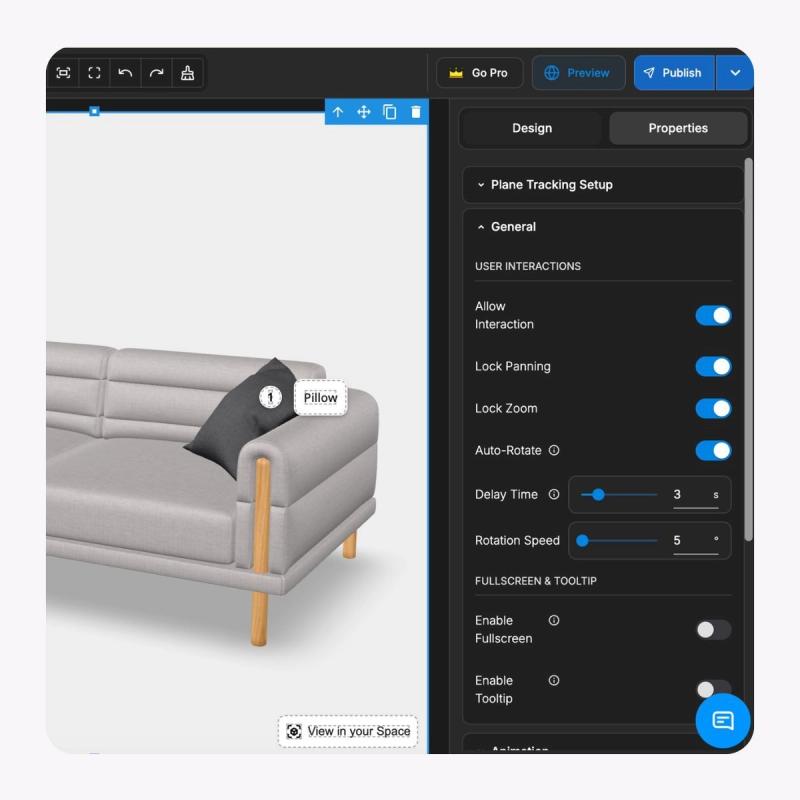
SwiftXR is a no-code platform for interactive 3D, AR, and virtual try-on experiences that publish to the web.
For Shopify AR try-on, the practical path is:
Create a SwiftXR account
Start a new project
Choose the experience type that matches the product
- Face tracking or virtual try-on for face-worn products
- AR placement for products that need spatial context
Upload or attach the product asset
Configure presentation, variants, and viewing behaviour
Publish the experience
You are not building a native customer app.
You are preparing a browser experience that can live on the Shopify product page.
Step 4: Connect SwiftXR to Shopify
Once the experience is published, link it to the relevant Shopify product.
Depending on your setup, that may include:
- installing the SwiftXR app from the Shopify side
- linking a product to the published experience
- placing the viewer or try-on control on the product page
- confirming the experience appears only on enabled products
Keep the control visible.
If shoppers cannot find try-on, the feature does not exist for them.
Step 5: Keep the buying path intact
AR should support the purchase decision, not replace the product page.
Check that shoppers can still:
- switch variants
- see price
- read essential product information
- add to cart
- move to checkout
Try-on is useful only if it feeds the same commercial journey.
Step 6: Test the full mobile journey
Most Shopify AR sessions happen on phones. Test on real devices, not only desktop previews.
On a phone, confirm:
- the product page loads cleanly
- the AR or try-on control is obvious
- camera permission is clear
- the experience launches without an app download
- the product tracks or places well enough to be useful
- the shopper can exit and continue shopping
- page performance still feels acceptable
Also test weaker conditions:
- average indoor lighting
- slightly older phones
- interrupted permissions
- one-handed use
If the mobile journey fails, do not expand the catalogue yet.
Step 7: Measure the pilot before you scale
Do not judge the launch by novelty.
Track:
- AR or try-on opens
- completion rate
- camera-permission acceptance where relevant
- variant interaction during the experience
- add-to-cart progression after try-on
- conversion on pilot products versus comparable products
- device-specific drop-off
The goal of the pilot is evidence.
Evidence decides which products earn AR next.
Common mistakes Shopify stores make
Building an app too early
Most stores need a product-page experience first, not a native project.
Launching every SKU at once
Catalogue-wide rollout hides the real friction points.
Hiding the try-on button
If it is below the fold or buried in secondary actions, usage stays low.
Overclaiming fit or accuracy
A good promise is clearer preview and more confidence. Guaranteed fit is a different claim and should only be used when verified.
Ignoring variant alignment
The selected Shopify option and the AR preview must match.
Skipping privacy clarity
If the experience uses the camera, explain why in plain language. Separate face tracking from facial recognition when the product involves face-worn try-on.
Where SwiftXR fits on Shopify
SwiftXR is built for teams that want immersive product experiences on the store they already run.
For Shopify AR try-on, that means:
- browser-based experiences with no shopper-facing app requirement
- no-code creation and publishing
- support for AR placement and virtual try-on workflows
- product-page delivery instead of a disconnected destination
- a practical path from pilot products to wider rollout
You still choose the products.
You still own merchandising and variant logic.
SwiftXR handles the interactive layer that static photos cannot.
A practical Shopify launch path
Choose 5 to 10 high-doubt products
Prepare clean assets and variant rules
Build and publish the AR try-on experience in SwiftXR
Connect it to the Shopify product page
Test the complete mobile journey
Measure opens, completion, and cart progression
Fix friction
Expand only after the pilot earns the next set of products
That is how you add AR try-on to Shopify without building an app, and without turning the whole catalogue into an experiment on day one.
Frequently Asked Questions
Do shoppers need to download an app?
No. The useful setup runs in the browser from the Shopify product page on supported devices.
Do I need a developer to launch AR try-on on Shopify?
For a standard setup, no. You still need product assets and clear variant mapping, but you do not need a custom native app build.
Is AR try-on only for glasses?
No. Face-worn products are a strong use case, but AR is also useful for products that need spatial context, such as home goods.
Should I enable AR on every product immediately?
No. Start with products where appearance or scale creates real hesitation. Expand after the pilot shows completion and commercial value.
What should we measure first?
Opens, completion, cart progression, conversion on pilot products, and where the mobile journey breaks.
Can AR try-on work with product variants?
Yes, and it should. The selected colour, finish, or style needs to match what the shopper sees in the experience.