Blog
November 11, 2026
·4 min readGLB Model Sideways After Export? Find the Fault Before You Rotate It

Otuokon Nsikak
When a GLB product model appears sideways, open the same exported file in a reference glTF viewer and in your product viewer. If the model is sideways in both, inspect the source orientation and export settings. If the file is upright in the reference viewer, check the product viewer's camera and scene before re-exporting. Fix the layer where the problem starts.
For an ecommerce team about to approve a batch of models, the tempting shortcut is to rotate the first item until it looks right. That can leave the file broken for the next destination and give the supplier an exception to repeat across every SKU. In SwiftXR, compare a published project with the same project embedded on your staging product page. The SwiftXR HTML guide explains how to publish and copy the embed.
Start with the exact file your catalogue uses
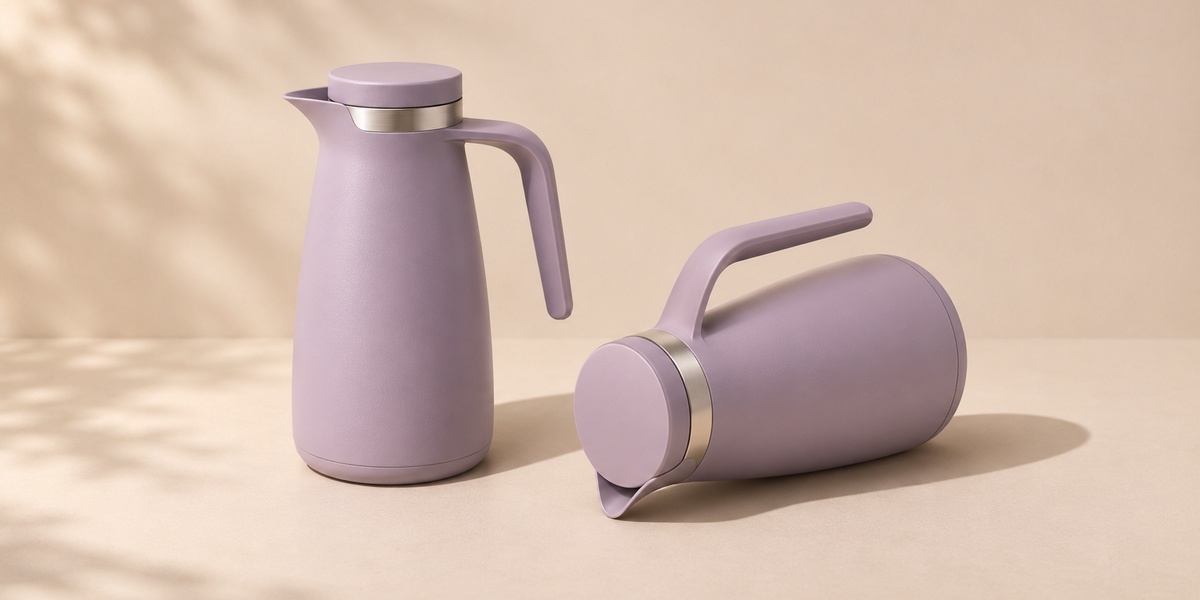
Get the delivered GLB and its revision from the asset owner. Write down what should face up and what a buyer should see first. For a fictional insulated carafe, the lid should be above the base, but the handle could face either side. Those are separate decisions: upright orientation belongs in the asset, while the first angle can be a merchandising choice.
Open the delivered file in the Khronos glTF Sample Viewer. Use the same file in the product viewer. Do not compare a new export in one viewer with a cached or previously uploaded revision in another.
When the file is sideways in both viewers
Check the source scene and the export preset with the 3D supplier. The glTF specification defines positive Y as up. The Blender glTF exporter has a +Y Up option that exports using that convention.
Check whether the model stands upright in the source scene and whether the pipeline has already converted its axes. A blanket 90-degree correction is risky: a previous export or conversion step may already have changed the orientation. Ask the asset owner to produce a new revision and validate that file before replacing any product-page media.
If the model is upright but seems to swing away from the centre as you rotate the view, report that symptom separately. Check model placement and the viewer's target before prescribing an axis change. A poor orbit can make an upright model difficult to inspect without the file being sideways.
When the file is upright but the product view looks wrong
First check the standalone project. The SwiftXR 3D Viewer guide documents camera position, orientation, zoom and field of view. Use those settings to establish a useful starting view after confirming the model itself is upright. A carafe can open at an angle that shows its handle and lid without changing the reusable asset.
If the standalone view looks right but the embedded one does not, confirm the staging page points to the intended project. Then compare the viewport and initial framing on desktop and on a phone. A cropped handle on a narrow product page calls for an embed or framing check. Sending that symptom back to the supplier as a sideways file invites the wrong fix.
Give the next supplier an acceptance example
Record the approved GLB revision, a reference-viewer screenshot, and the first view on the staging product page. Add the detail that must be visible for the buyer to evaluate the product. For the carafe, that could be the handle clearance shown by a particular angle, without treating the render as a substitute for measured specifications.
Separate who fixes each issue. The asset supplier owns source orientation and the export. The SwiftXR project owner owns the initial camera. The storefront owner checks the embedded view and keeps product photos and specifications available. Approve one representative SKU before applying the same acceptance process to the batch.
If you have a model ready to test, start with the SwiftXR 3D Model Viewer and try the same file as a standalone project and in a staging embed.